What the Today tab shows
Today is the first tab in Bolus and the one you will use most. It answers one question: what am I eating next? Underneath, it keeps the rest of your day in view.
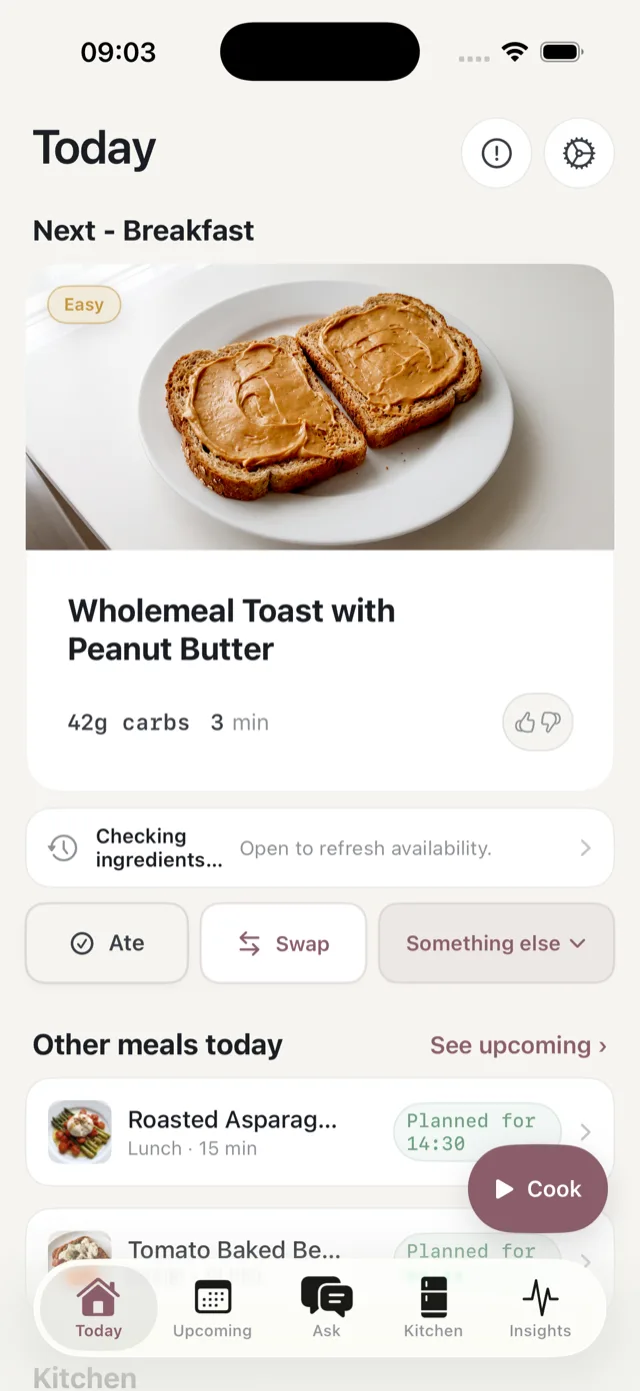
The meal at the top
The card at the top is your next meal, headed with its type, for example Next - Breakfast. It shows:
- The meal name, with a photo of the dish.
- An effort badge in the corner, from Easy through to V.Tight. See cooking effort and meal times.
- Carbs per serving and how long it takes to prepare.
- A thumbs up and thumbs down, if you want to tell Bolus what you thought of it. See what your ratings do.
- A missing-ingredients warning, if you have not ticked off everything it needs, with a See swaps button and a line naming what you are short of. See when you are short of ingredients.
Tap the card to open the full detail: ingredients, the method one step at a time, and the nutrition for a single serving. If your CGM is connected and you are a Premium member, the detail also shows how this dish has landed on your glucose before. See meal glucose response.
The three buttons
Underneath the card:
- Ate marks the meal as eaten and moves the day on. See mark what you ate.
- Swap opens the list of replacements. See swap a meal.
- Something else is for the nights that do not go to plan: eating out, or skipping it. See skip a meal or eat out.
The Cook button floating in the bottom corner starts the guided cook flow. See cook a meal.
The rest of the day
Other meals today lists the day’s remaining meals with the time each is planned for, and flags any that are short of ingredients. Tap any of them to open it, or See upcoming to jump to the whole week in the Food tab.
Kitchen is two rows: how many ingredients you still need to buy, with a count of what is needed today, and when your next weekly review is due. Tap the first to open your shopping list, the second to start the review.
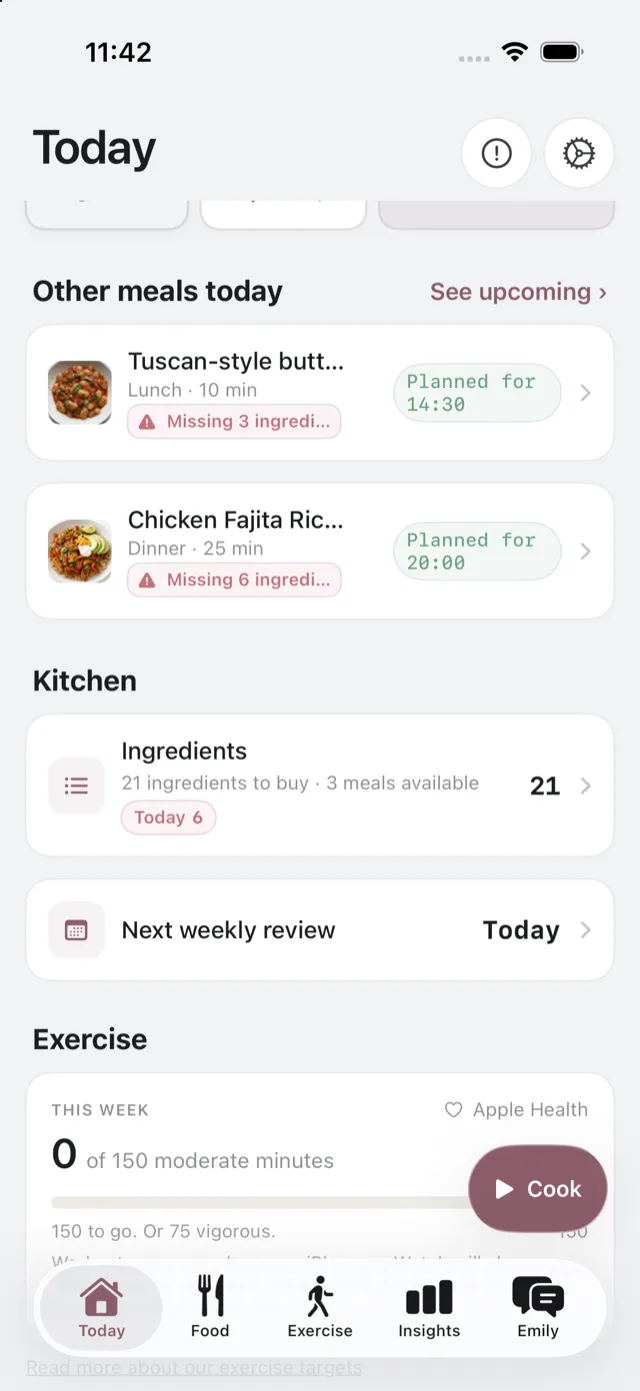
Glucose and exercise
If your CGM is connected, a Glucose section shows today’s trace and how much of the day so far was in the normal range. If Apple Health is connected, an Exercise card shows this week’s moderate minutes against the weekly aim. Both are the same figures the Insights and Exercise tabs go into in more depth. See glucose and exercise on Today.
The two buttons in the corner
The ! button opens a form to report a problem or suggest a feature, with the screen you were on already attached. The cog opens Settings. See get in touch with us and what is in Settings.
When you first sign up
Until your first meal, the top of Today is a Getting set up checklist: your plan is created, then saying hello to Emily, bringing in your exercise, doing your shopping, and cooking your first meal. It disappears once you are up and running. See your first week.
If it says your plan has run out
That means your last week finished and next week has not been built yet, usually because the weekly review was not done. Tap Start a fresh week and Bolus plans your meals from tomorrow. See if you miss the review.