Connecting
Connect FreeStyle Libre
Bolus reads FreeStyle Libre glucose through LibreLinkUp. To use it, you set yourself up as a follower of your own sensor, then connect that LibreLinkUp login to Bolus.
Set up LibreLinkUp
Do this part in Abbott’s own apps. You are inviting yourself as a follower so LibreLinkUp has your readings to share.
- Open the FreeStyle Libre app and tap Share under Connections.
- Tap Invite Follower and enter your own email address.
- Choose to share both sensor readings and trend graph data.
- Review the details and send the follower invitation.
- Install the LibreLinkUp app and log in as the follower.
- Accept the email invitation and follow yourself.
You now have a LibreLinkUp login, the email and password you just used, that Bolus can read from.
Connect in Bolus
- Go to Settings, then Connect CGM, and choose FreeStyle Libre. During setup you will reach the same screen.
- Tap Connect, then enter your LibreLinkUp email and password.
- Tap Sign in & connect.
There is a Show me how link on that screen if you want the LibreLinkUp steps again.
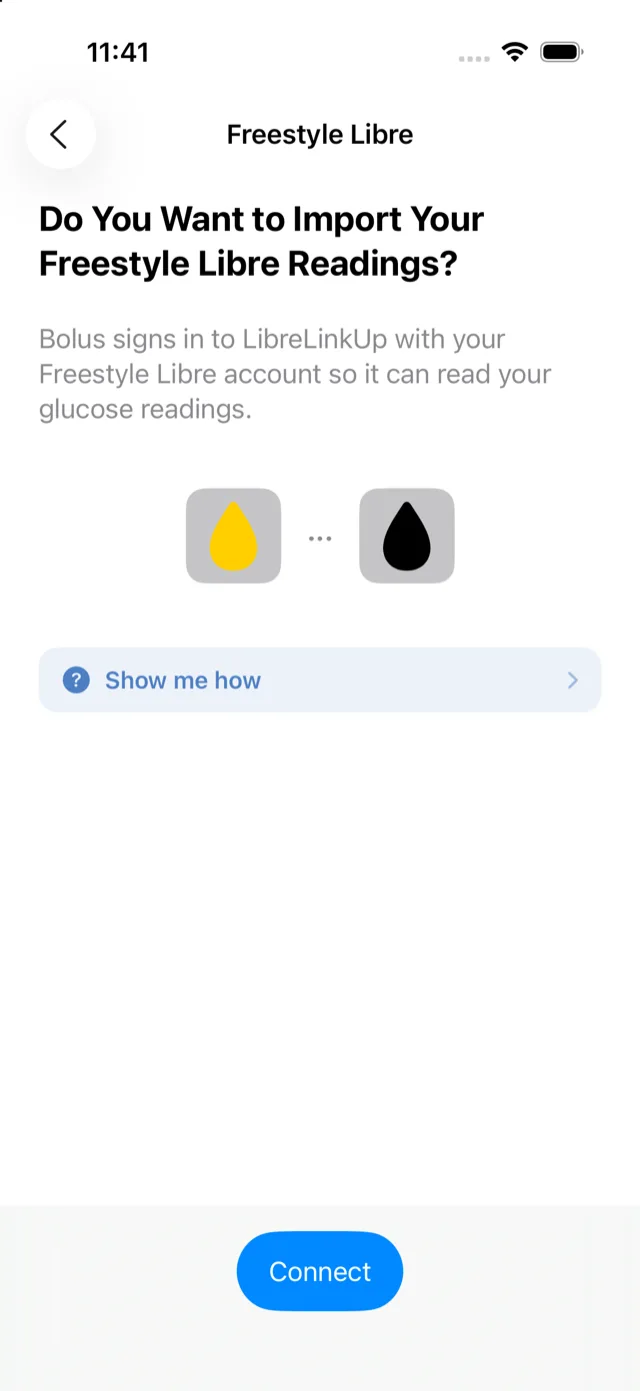
Bolus uses these details to read your glucose history from LibreLinkUp. That is all it does with them.
Your Libre login is kept in your iPhone’s secure keychain and is only used to fetch your readings. It is never sent to or stored on Bolus servers.
If it will not connect
- Wrong email or password. Check them by logging in to the LibreLinkUp app, then try again in Bolus.
- Account locked. Too many failed attempts can lock your account for a while. Wait, then retry.
- Terms need accepting. If Abbott has new terms, open a Libre app once to accept them, then reconnect in Bolus.
- No readings yet. Make sure the follower invite has been accepted and LibreLinkUp is showing your glucose before you connect in Bolus.
Once connected, your glucose appears on Today and the Insights tab. If it stops updating later, see fix a CGM that needs reconnecting.