Connecting
Connect Dexcom
Bolus reads Dexcom glucose through Apple Health, rather than logging in to Dexcom directly.
Before you start
Make sure your Dexcom app is set up and writing your glucose to Apple Health on the same iPhone. Dexcom’s own app handles that side, so turn sharing on there first:
- Open the Dexcom G7 app.
- Tap the Connections tab.
- Tap Apple Health.
- Tap Activate to share.
- On the Health Access screen, tap the Blood Glucose switch to turn it on.
- Tap Allow.
Once that is on, Dexcom writes your readings into Apple Health, and Bolus can read them from there. You only need to do this once.
How to connect
- Go to Settings, then Connect CGM, and choose Dexcom.
- On the screen explaining that Bolus reads your glucose through Apple Health, tap Connect.
- Apple’s Health permission sheet appears. Allow Bolus to read Blood Glucose.
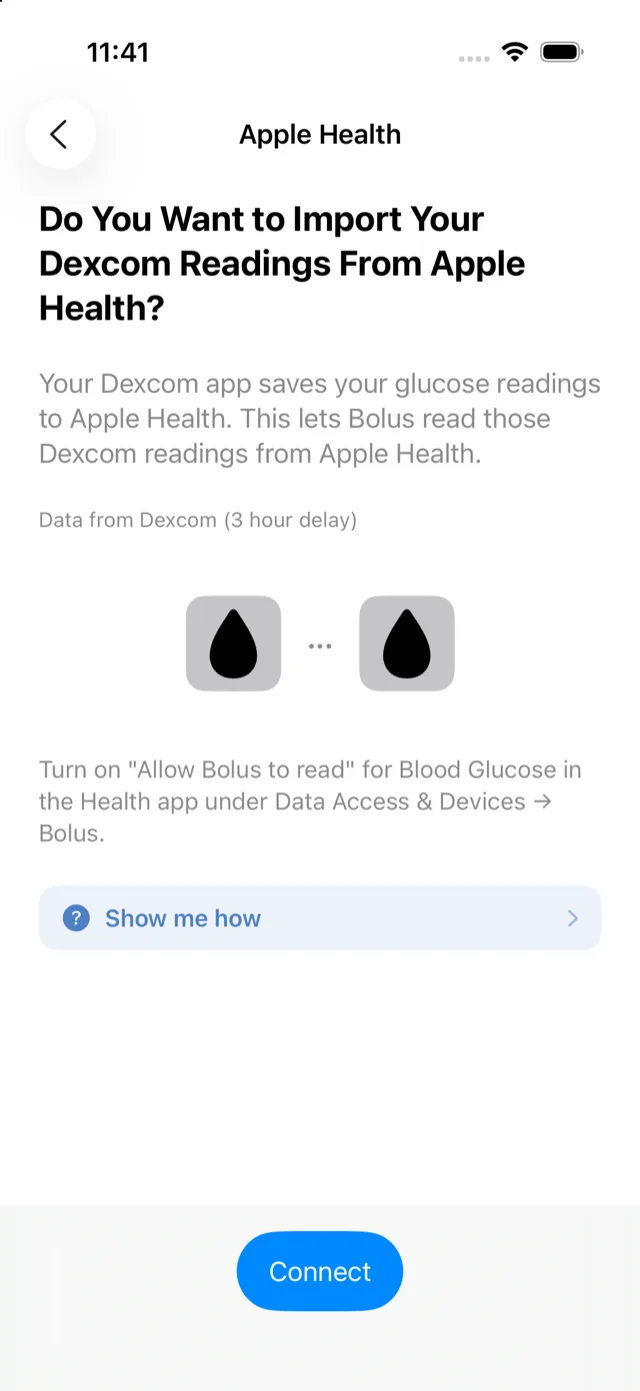
That is it. Bolus reads your blood glucose from Apple Health and nothing else. It never writes anything back to Health, and it does not see your name or any Dexcom login.
Good to know
- Dexcom readings run about three hours behind on this path. That is a property of the Dexcom to Apple Health route, not something Bolus can speed up, so recent readings appear a little later than on the Dexcom app itself.
- If you tapped the wrong thing and Bolus cannot read your glucose, open the Health app, go to Browse, then Data Access & Devices, then Bolus, and turn on Blood Glucose.
Your glucose then appears on Today and the Insights tab. If it stops updating, see fix a CGM that needs reconnecting.